
A track is one audio file in your library. You upload it once and can send it directly or place it in any number of playlists; every playlist points to the same file.
Uploading
Open Tracks and drop one or more files anywhere on the page, or use "Browse files". Uploads run in the background and resume if the connection drops. Large files are fine: uploads are chunked.
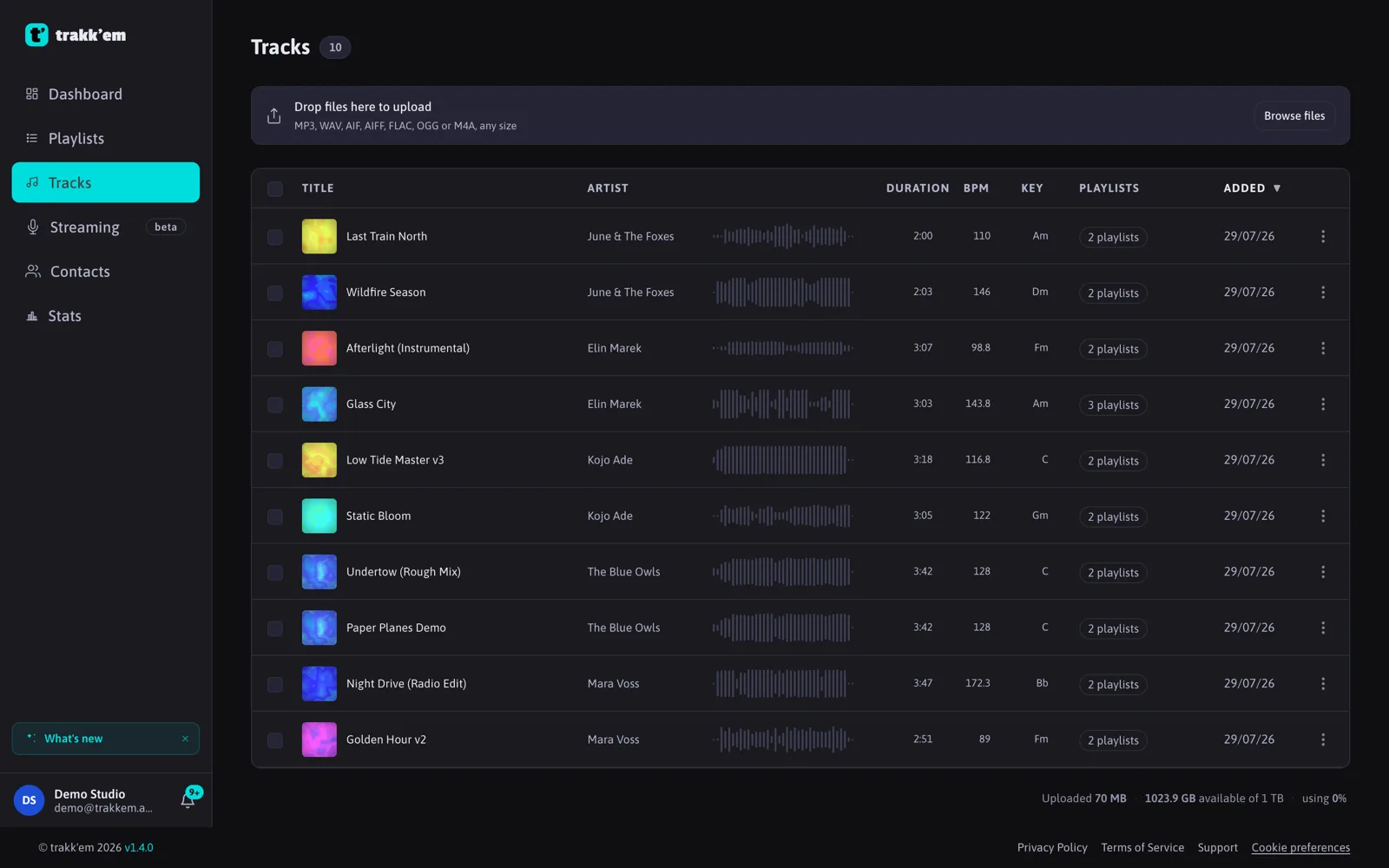
Accepted formats: MP3, WAV, AIFF, FLAC, OGG and M4A. The file is stored as is, at its original quality, in every plan.
Each upload counts against your storage quota (1 GB on Free, 100 GB on Pro, 1 TB on Studio). Deleting a track frees the space once it leaves the Trash.
The track page
Click a track to open its page. From here you can:
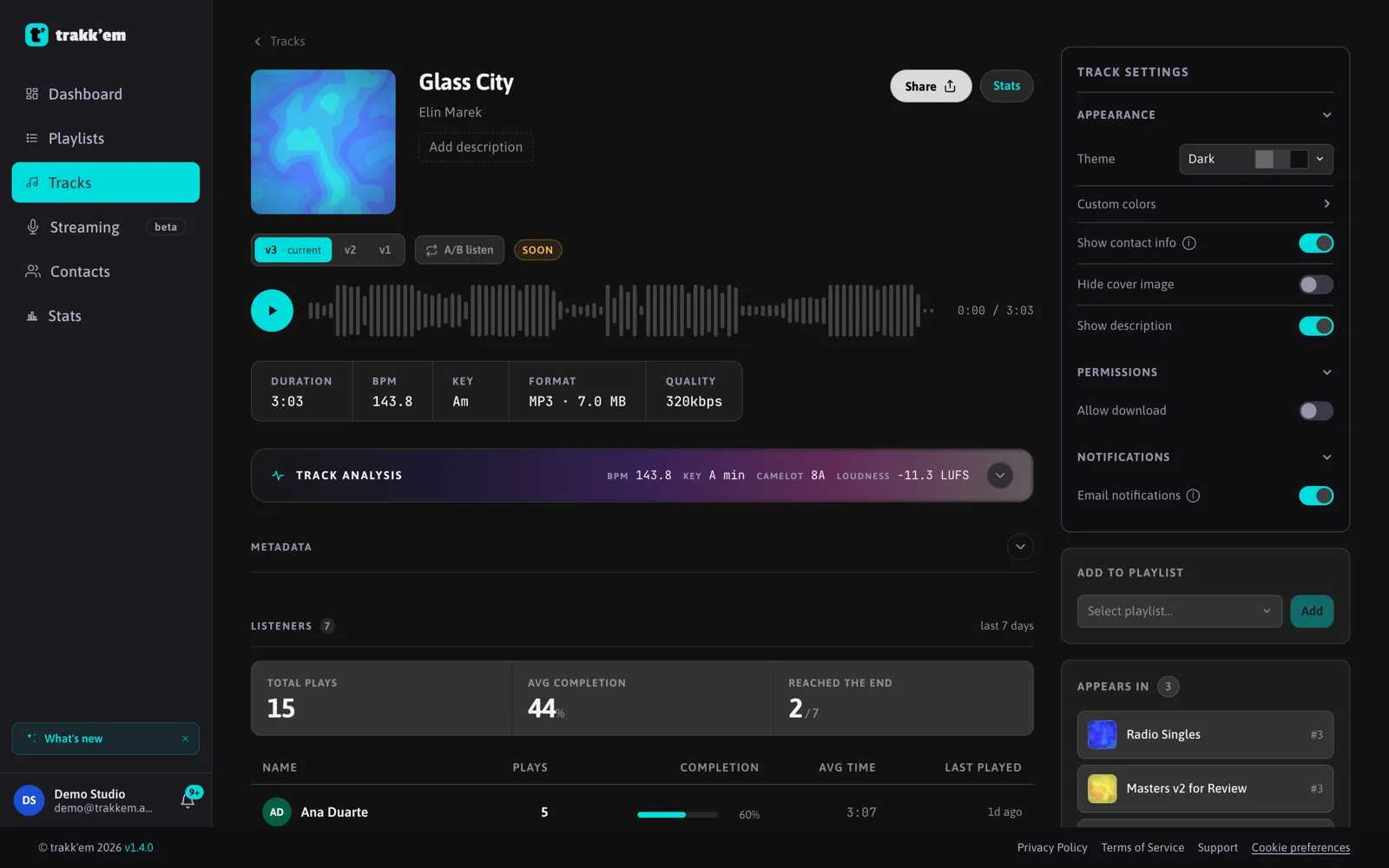
- Edit title, artist, BPM and key by clicking the pencil next to each value. Embedded tags are read from the file at upload, so most of this is already filled in.
- Change the cover. JPEG, PNG and WebP are accepted. A track without a cover shows the default cover you set in Settings, if any.
- See the file info: format, size and quality (for example
MP3 · 4.2 MBand320kbps, or24bit 44.1khzfor lossless files).

- Read the analysis: tempo, key, loudness and Track DNA. See Track analysis.
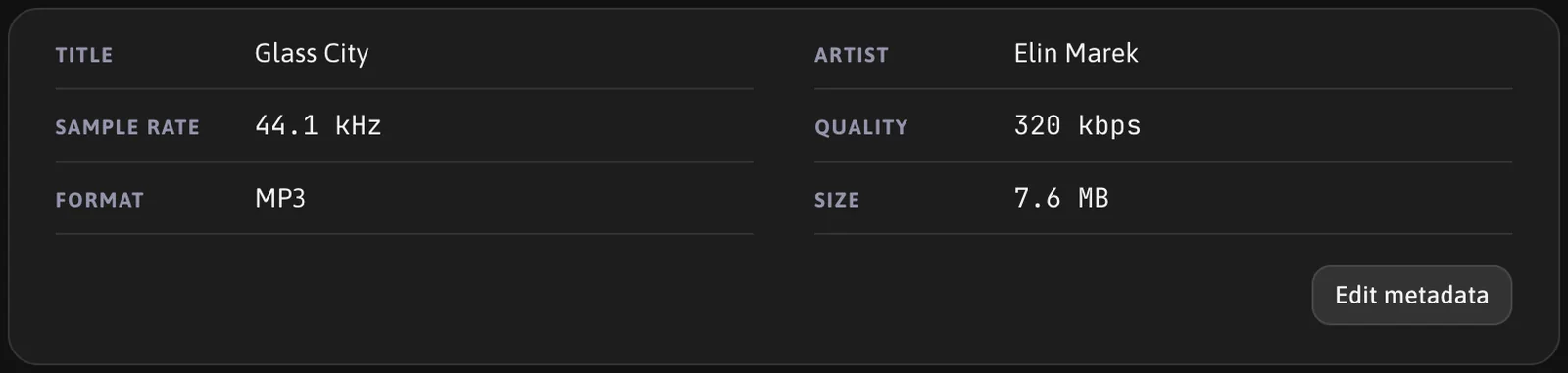
- Browse and edit the metadata (Studio): album, year, ISRC, genre, composer, copyright, lyrics and comment, read from the file's tags. Edit metadata turns every field into an input, empty ones included; format, quality and size stay as the file has them.
- See the listeners of the last 7 days with total plays, average completion and how many reached the end.
- Share the track, or add more tracks to an existing share (see Playlists).
Track settings
The settings panel (the gear icon) holds the appearance of the player page for this track:
- Theme: a set of named color presets, or custom colors with sliders for color, saturation, lightness and text contrast.
- Show contact info, Hide cover image, Show description.
- Data: what the player shows for the track: artist, BPM, key, audio quality, ISRC. All off on a new track.
- Allow download and Email notifications (email me the first time the link is opened or downloaded).
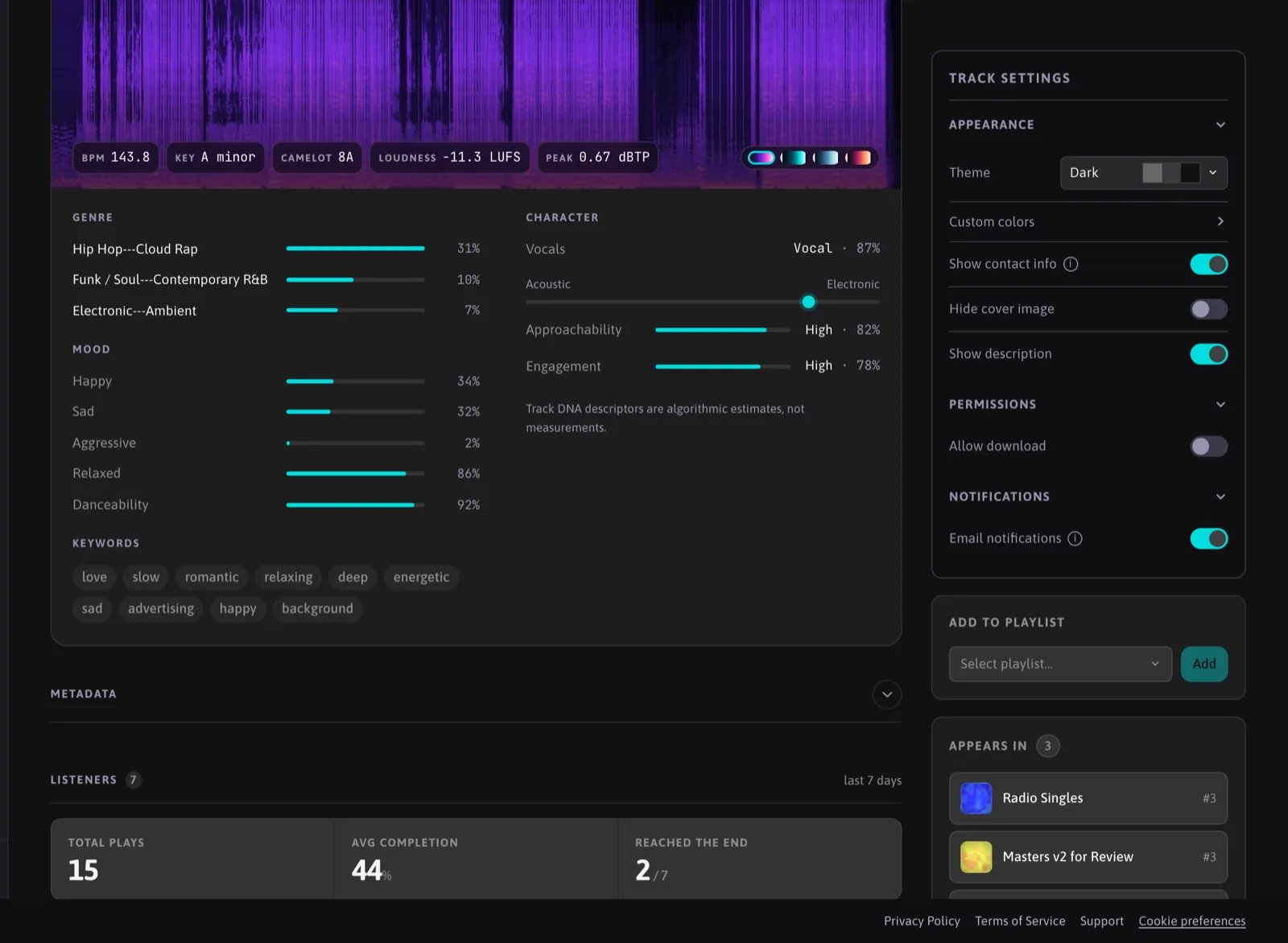
When you share a track directly, its appearance is copied to the share, so what you set here is what the listener sees.
Trash and archive
Deleting a track moves it to the Trash (avatar menu). From there you can restore it or delete it for good. In Settings, "Empty trash after" sets an automatic purge (30 days, 6 months, 1 year, or never).
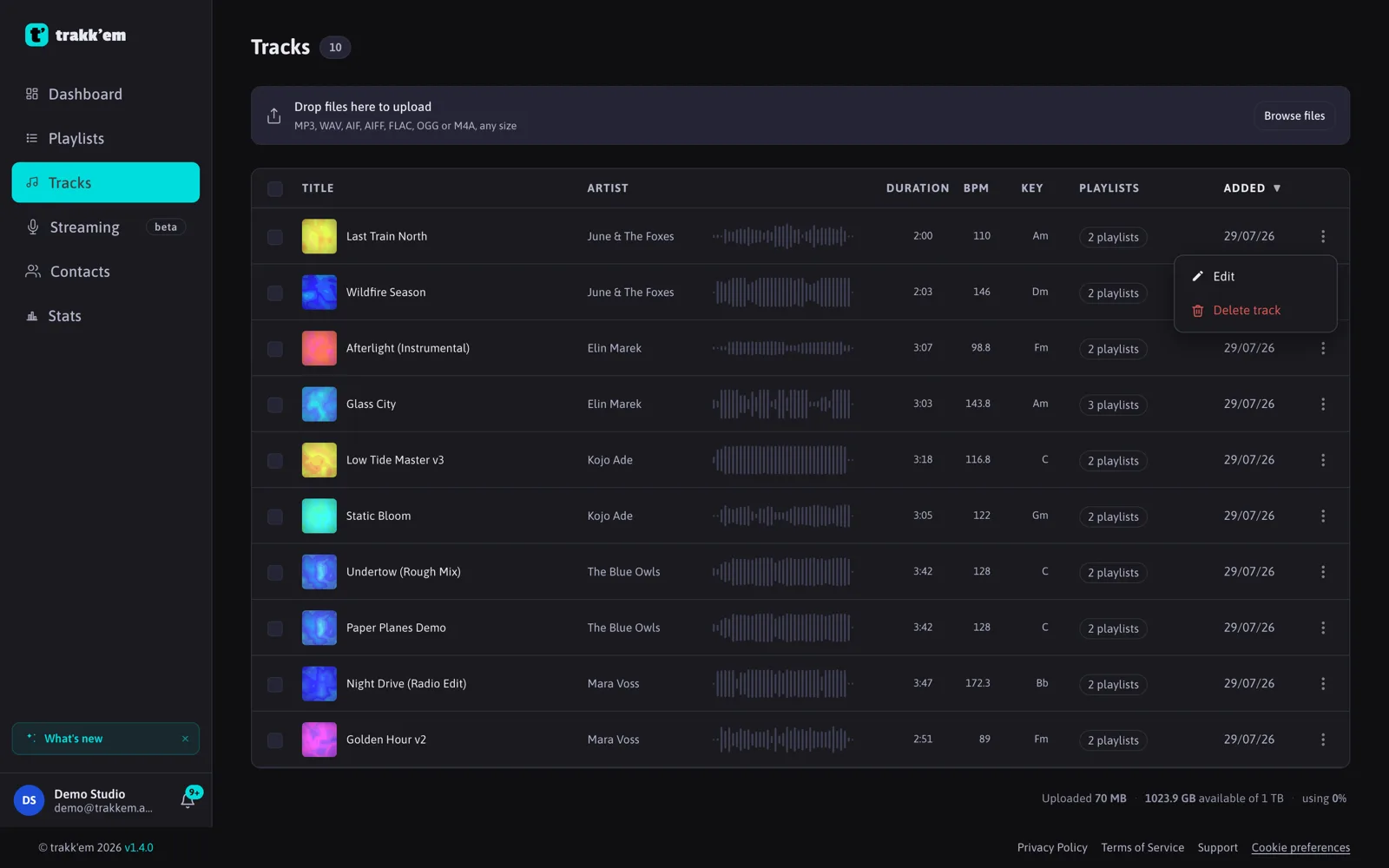
Deleting a track also deletes its play and download history, so the totals of a playlist always match the tracks it contains.
FAQ
How do I send a new version of a track?
Upload it as a version of the same track from the track page: existing links keep working and listeners can switch between versions in the player. See Track versions and A/B listening.
Why does my M4A or AIFF take a moment longer after upload?
The waveform is generated on the server after the file lands. For a few formats this uses a slower path. The audio itself is untouched.
Is there a maximum file size?
Uploads are chunked and there is no practical per-file limit in the app; the only ceiling is your storage quota.