
A playlist groups tracks so you can send them as one link. Listeners get one page with the whole tracklist, gapless playback between tracks, and every play is recorded per track.
Creating a playlist
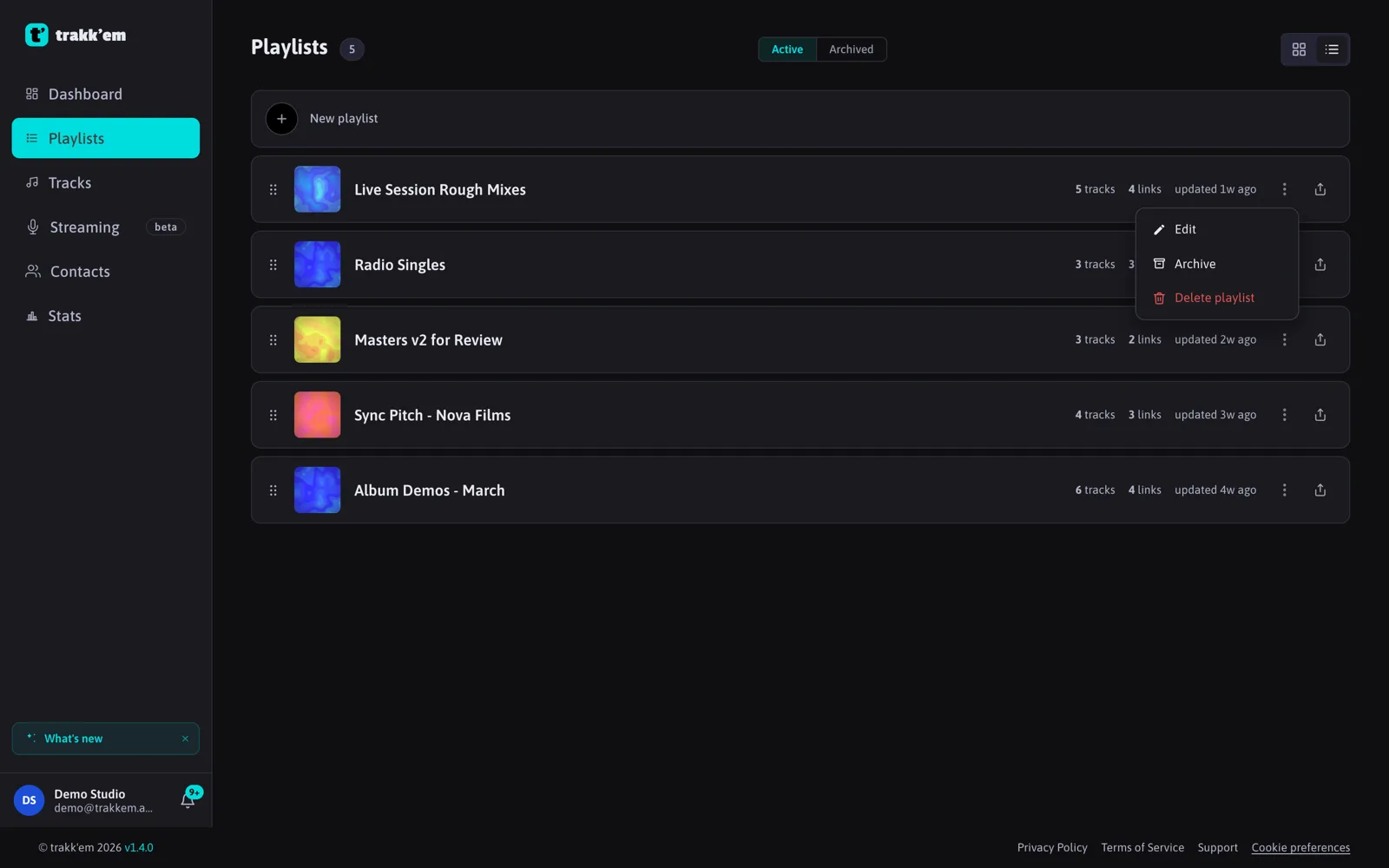
Open Playlists and use "New playlist" with a name. Then add tracks in either of two ways:
- Drop audio files anywhere on the playlist page. They are uploaded to your library and added in one step.
- Pick from the library with the "Add tracks" box, which searches your existing tracks.
Non-audio files dropped on the page become attachments (see Attachments and downloads).
From a single share to a playlist
When you share a single track directly, trakk'em creates a hidden one-track container behind the scenes. On the track page, the Links section offers "Add more tracks to this share": pick tracks, and the container becomes a visible playlist. The links you already sent keep working and now show the new tracklist.
Ordering
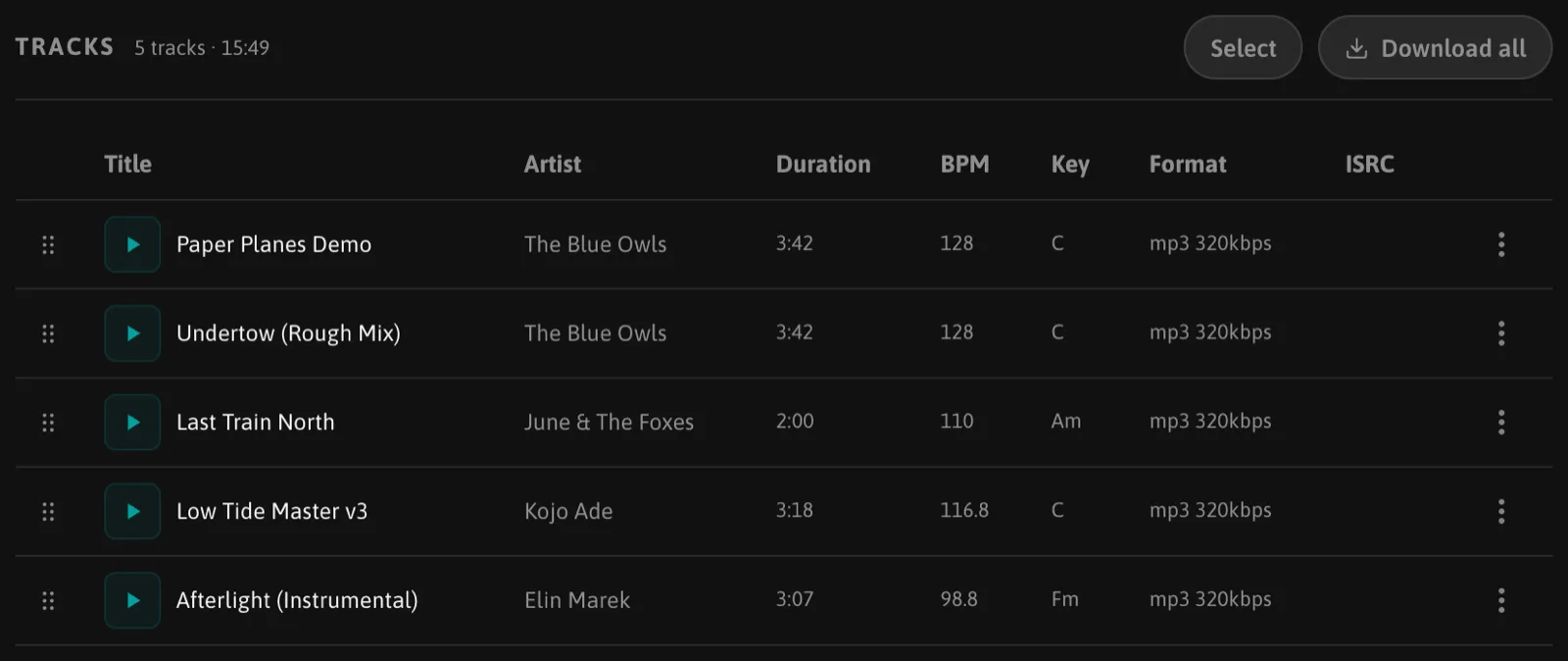
Drag tracks by the handle to reorder them. The order is saved immediately and is what listeners see.
Playlist settings
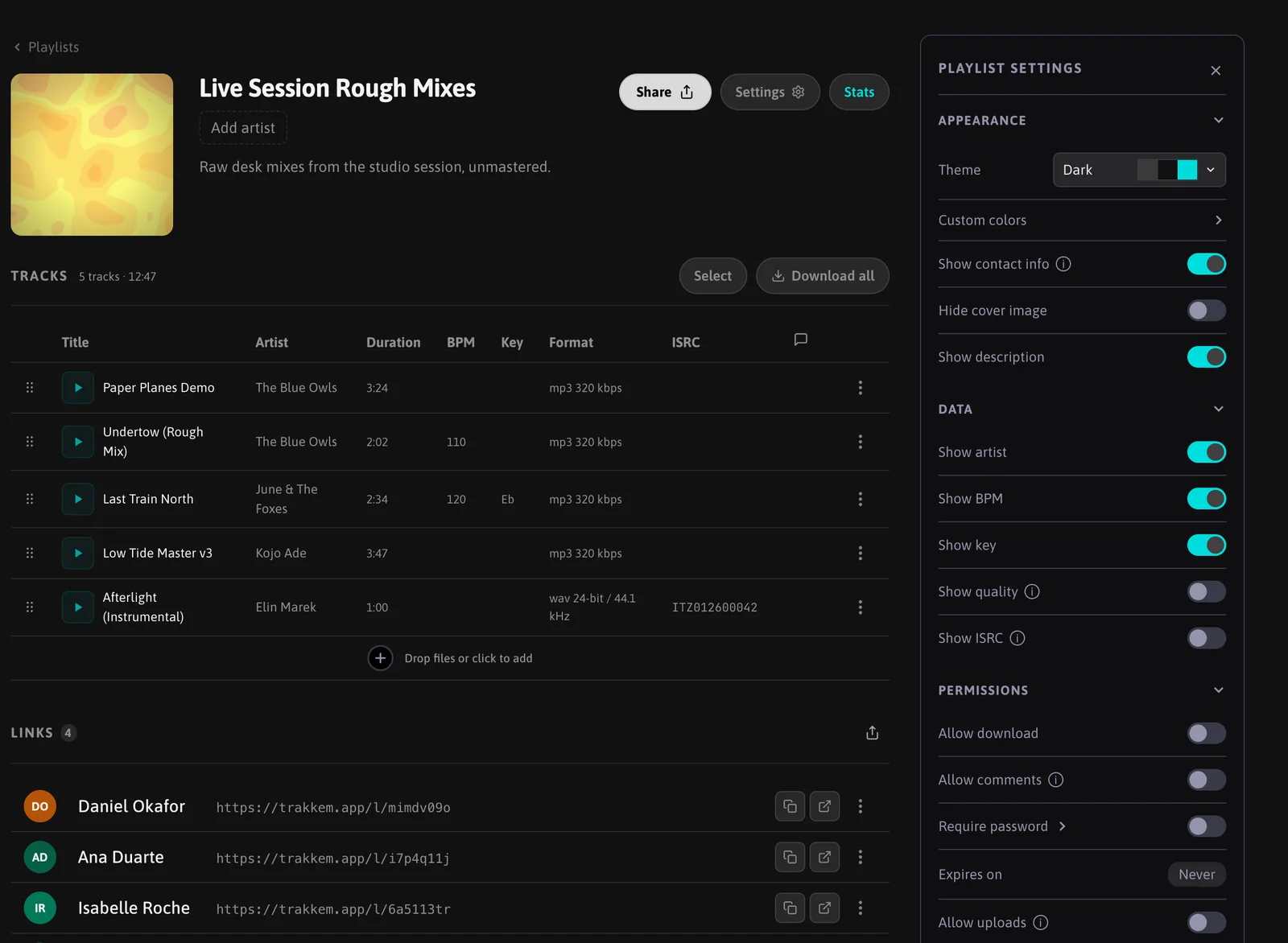
The settings panel (gear icon) auto-saves every change:
- Appearance: theme or custom colors, contact info, cover, description. A playlist has its own appearance, separate from the tracks it contains.
- Artist: an artist for the whole playlist. A track shows its own artist only when it differs.
- Data: what the public player shows for each track: artist, BPM, key, audio quality, ISRC. All off on a new playlist. Listeners copy an ISRC with one click.
- Permissions: Allow download, Allow uploads (listeners can send you files back).
- Notifications: Email notifications, so you get an email the first time a link is opened or downloaded.
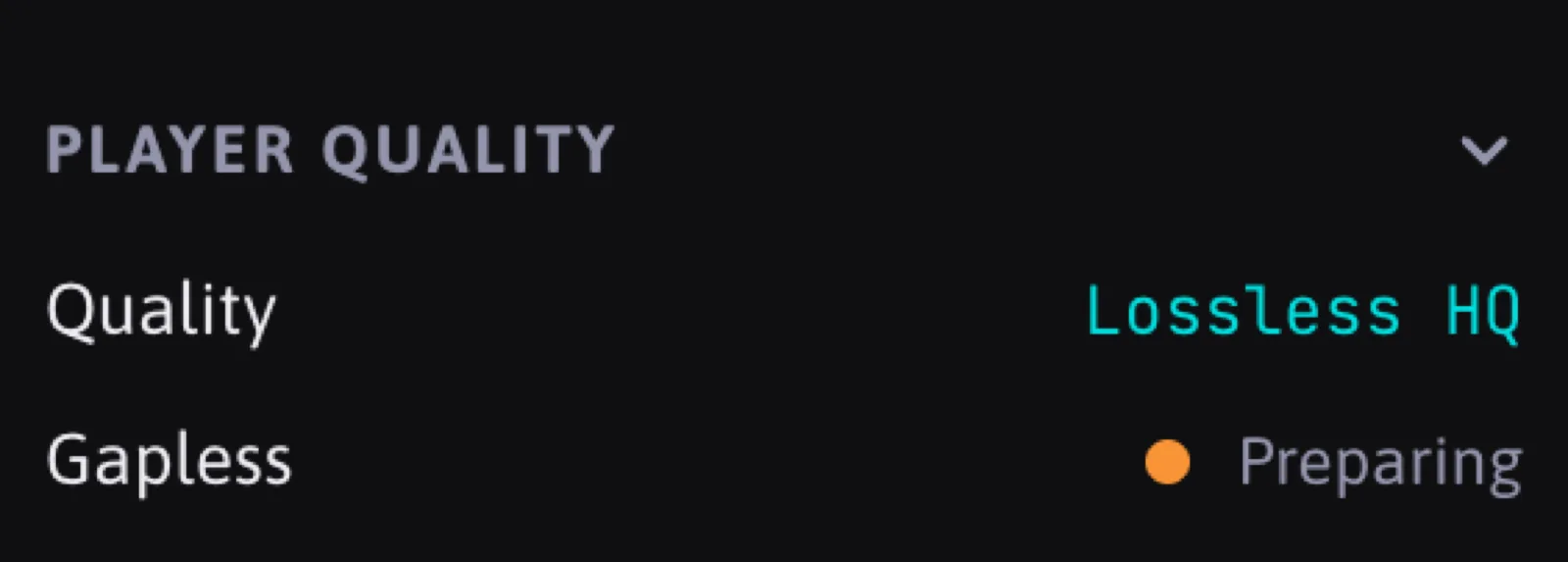
- Player quality: the gapless player quality for your plan (MP3 320 on Free, lossless on Pro and Studio), with a status showing when the gapless version is ready. Originals are always kept intact.
Archive and trash
A playlist you are done with can be archived from its menu: it leaves the active list without deleting anything, and links keep working. In Settings, "Auto archive playlist after" (Pro and Studio) does this automatically after 1, 6 or 12 months.
Deleting a playlist moves it to the Trash. A checkbox lets you also move its tracks to the Trash; otherwise they stay in the library. Restoring the playlist restores the tracks that went with it.
FAQ
Can one track be in several playlists?
Yes. The file is stored once; playlists only reference it.
If I add a track to a playlist after sending the links, do listeners see it?
Yes. A link always shows the current state of the playlist.
What does gapless mean here?
Tracks play back to back with no silence between them, as on a CD. The player prepares a continuous version of the playlist after tracks are added; the settings panel shows when it is ready.