
A track can hold several versions: a rough mix, a mix, a master. Every version is a full audio file with its own format, duration, waveform and analysis, and its own plays and segments. Comments belong to the track, not to a version: there is one thread for the whole group (see Comments). Title, artist, cover, description, appearance and switches belong to the track and are shared by every version. Available on Pro and Studio.
Adding a version
Open the track page. In the "Upload a new version" area, drop an audio file or use "Choose a file". trakk'em proposes a label (v2, v3, and so on), which you can edit before the upload. A version number written in the file name is picked up as the label: "mix v1.2" proposes "v1.2", "song_2.3" proposes "v2.3". The word "master" is kept in front: "song_master_v2.3" proposes "master v2.3".
A track with no versions of its own can also join another track's group: use "Make this a version of another track". Its playlists move to that track, and listeners keep their links.
Several versions in one upload
When you drop files that differ only by their version number, for example "Stay Right Here v1.0", "v1.1" and "v1.2", in the Tracks page or in a playlist, trakk'em asks whether to upload them as one track with its versions or as separate tracks. Names match when they are the same once the number is set aside, whatever the case, spaces, dashes and underscores. As one track, the versions follow their numbers and the highest one is the main version. A file named "master" (for example "Stay Right Here MASTER") always comes last and is the main version; with several masters, the one with the highest number wins. The main version is analyzed first, then the older ones. In a playlist, the track is added and its versions stay inside it.
In the Tracks list, a track with versions shows how many it has next to its title.
The main version
The main version is the one playlists, the library and the download-all zip use. It is the latest upload by default; choose a different one from the row menu with "Set as main".
Working with versions on the track page
Chips above the player select which version the page shows: waveform, duration, format, quality, stats and analysis all follow the selected chip. Comments do not: the list holds the whole track's thread whatever chip is selected, and only the markers under the waveform follow the selected version.
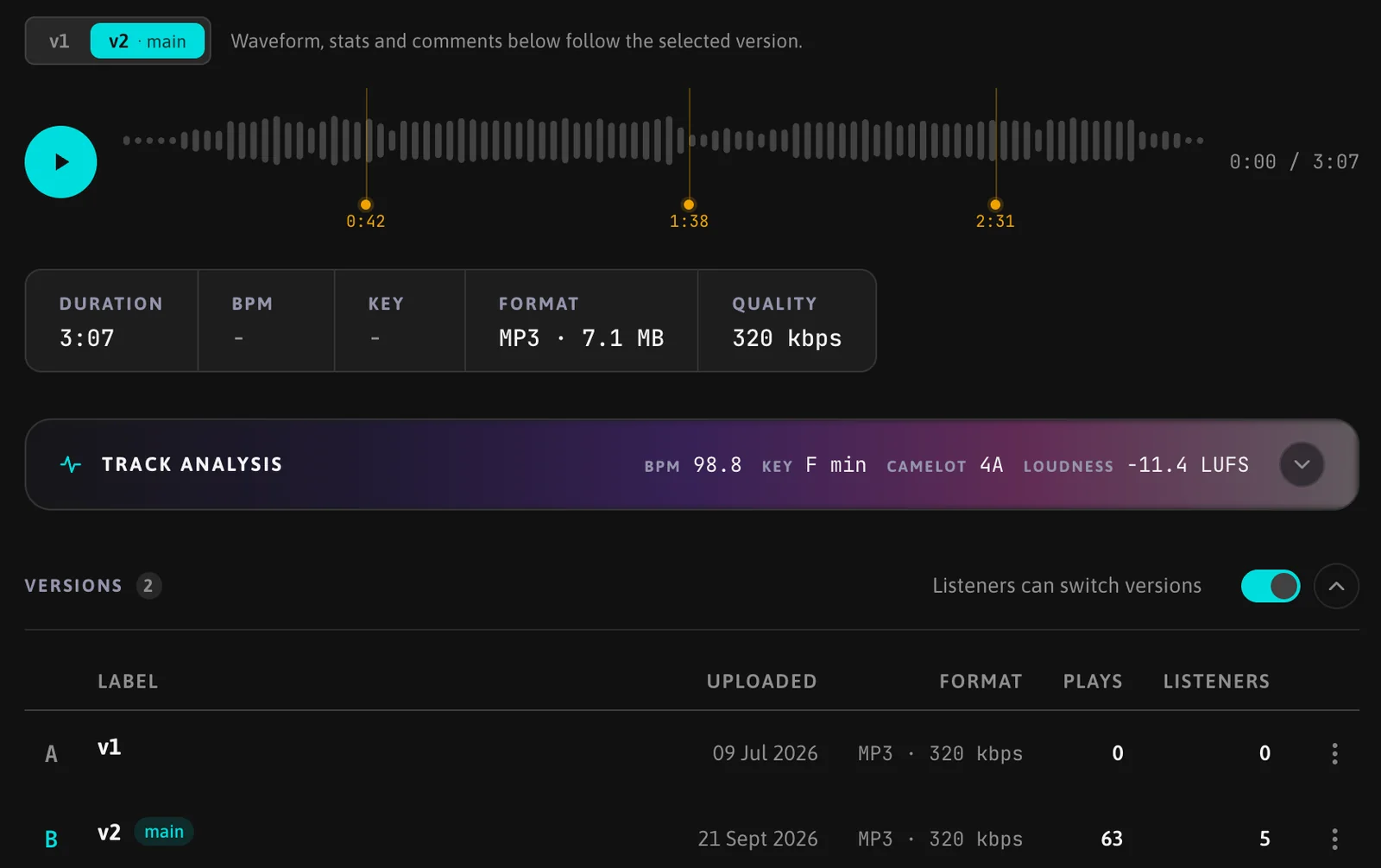
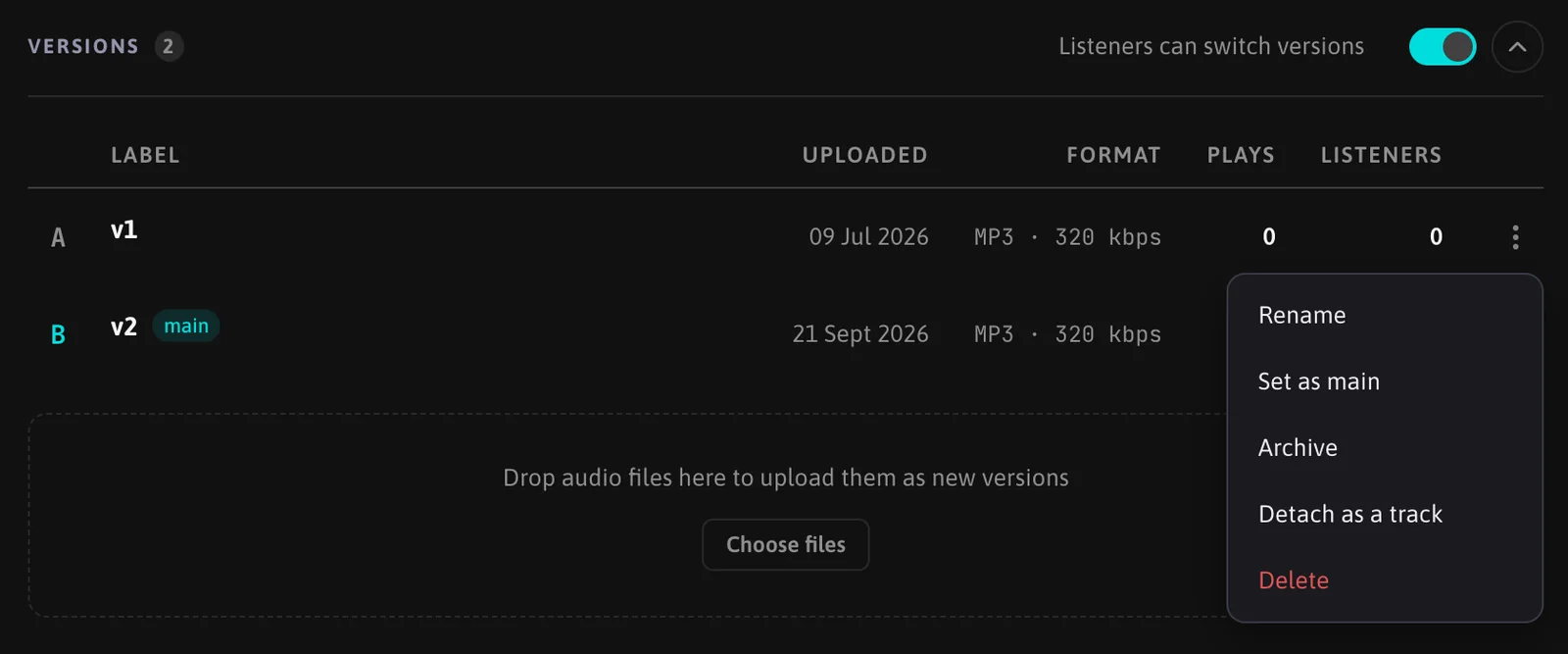
The versions table lists every version with its label, the name of the file you uploaded, upload date, format, plays and listeners. The file name is kept for uploads from September 2026 on, and your own downloads use it. Drag a row by its handle to change the order: the chips and the letters listeners see follow it, and the main version stays the same. Each row has a menu with:
- Rename
- Set as main: shown on every row that is not already the main version.
- Archive or Unarchive: an archived version is hidden from listeners and from the chips, though it stays in the table and can be unarchived any time. A group always keeps at least one active version.
- Detach as a track: the version leaves the group and becomes a standalone track with no playlists. Not shown on the version the track's links point to.
- Delete: removes that version only; the track keeps its other versions, its title, links and comments. When the deleted version was the main one, another version takes over and the page says which one now leads. Deleting the only active version of a track whose other versions are all archived is refused: unarchive another version or delete the whole track.
Trash
A version deleted from the versions table goes to the Trash on its own, and restoring it puts it back among the track's versions. Deleting the track itself, from the library or from a playlist, moves the track to the Trash with every version: it shows there as one item, and Restore or Delete forever acts on all of them.
Listening to versions from a playlist
In a playlist, a track with versions shows them as small chips in its row. The play button plays the main version; a chip plays that version, at the same point if the track is already playing. The chip of the version you are hearing is lit.
Letting listeners switch versions
The track settings panel has "Listeners can switch versions" (on by default). A playlist gets the same switch in its own settings once one of its tracks has versions; turning it off there hides the A/B buttons on that playlist only. The playlist switch can only narrow what the track allows, never widen it.
What listeners see
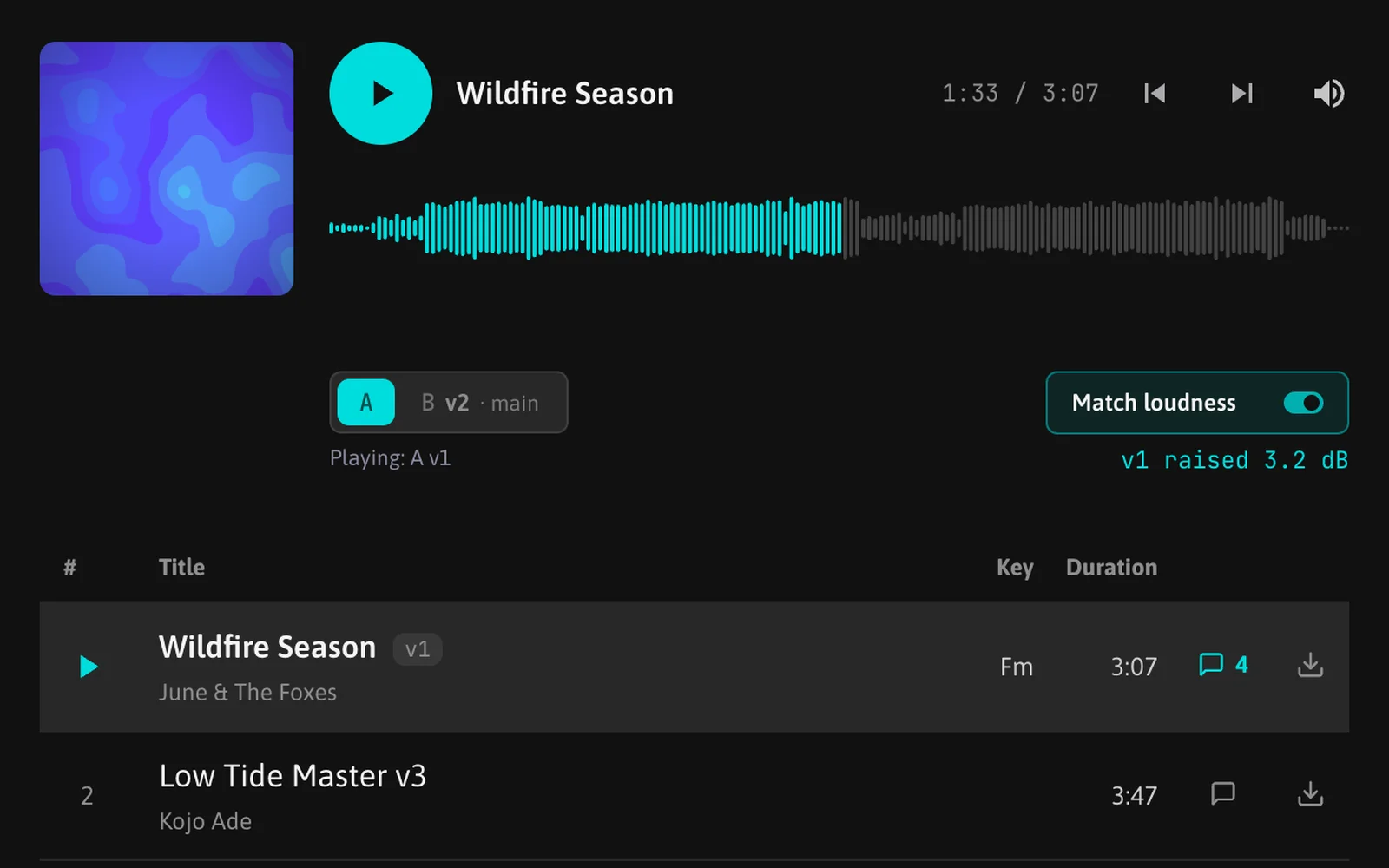
Private links and the website embed work the same way. When a track has versions, its label appears next to the title. With two or more versions exposed, A/B/C/D buttons appear under the waveform, lettered in the order of the versions table and carrying the owner's label.
Tapping a button switches instantly at the same point in the track, and playback continues. With a keyboard, the number keys 1 to 4 switch versions too, and L turns Match loudness on and off (see all the keyboard shortcuts). Plays are tracked separately for each version; comments are not, the whole thread shows whatever version is playing. A single download takes the selected version and adds its label to the file name, for example "Title (v2).wav"; "Download all" takes the main version of each track.
Match loudness
On the right of the buttons, a "Match loudness" toggle raises every version to the level of the loudest one, so switching compares the sound rather than the volume; the loudest version plays untouched. A raised version that already peaks near full scale can clip. The applied correction is written next to the toggle, for example "mix raised 3.2 dB", and updates as playback moves between versions. The toggle needs a loudness figure for every version to work: run Track analysis (Pro) on each one first; until then it shows "Analyze every version to enable loudness match". With the toggle off, the line under it reads "Versions play at their own level". The toggle starts off every time the page opens.
Gapless playback
A gapless playlist plays the main version of each track. Switching version during playback takes that visit out of gapless mode for the rest of the session.
Comments on a track with versions
A track has one comment thread, shown in full on every version. A comment left on a moment also names the version that was playing when the moment was picked, for example "1:23 · v2"; clicking that time switches to that version and jumps there. A comment survives its version: if the version was archived, detached or deleted, the time still reads with its label and says it is no longer available.
Stats
The Stats page and a link's detail show the version label next to the track title, for example "Title · v2". Track and playlist totals add up every version.
Notifying listeners
After you upload a new version, the track page shows an update strip with a chip for every playlist that contains the track. Pick the playlists you want to notify, write your message and send one update email per playlist. Nothing is sent automatically.
FAQ
Can Free accounts use versions?
Existing versions keep working and listeners always hear the main version. Creating a new version needs Pro or Studio; on Free, the two creation entry points open the upgrade dialog.
Can I still tell versions apart if I archive one?
Yes. An archived version stays listed in the versions table with its full history, and you can unarchive it whenever you like.
What happens to a playlist link if I delete the version it points to?
The link keeps working: the next version takes its place and listeners hear that one.