
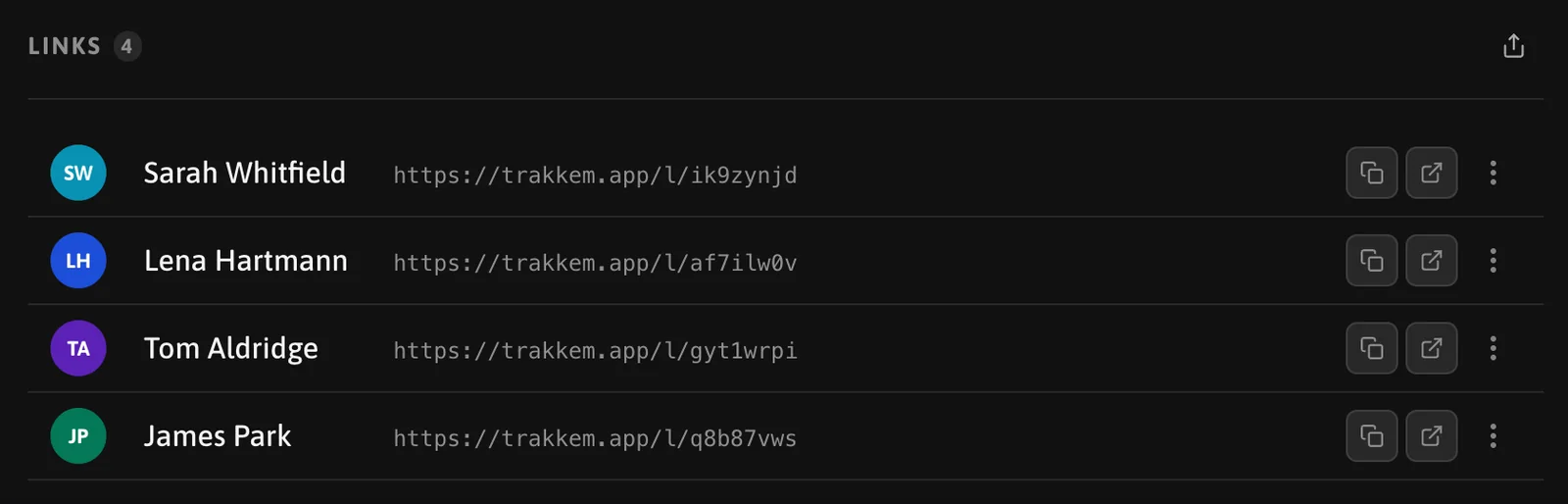
Sharing in trakk'em means giving each listener their own private link. Nobody sees a public page; every link belongs to one contact, so every play is attributed to a person.
Sending a share
Press Share on a playlist or a track. The window has three ways to share:
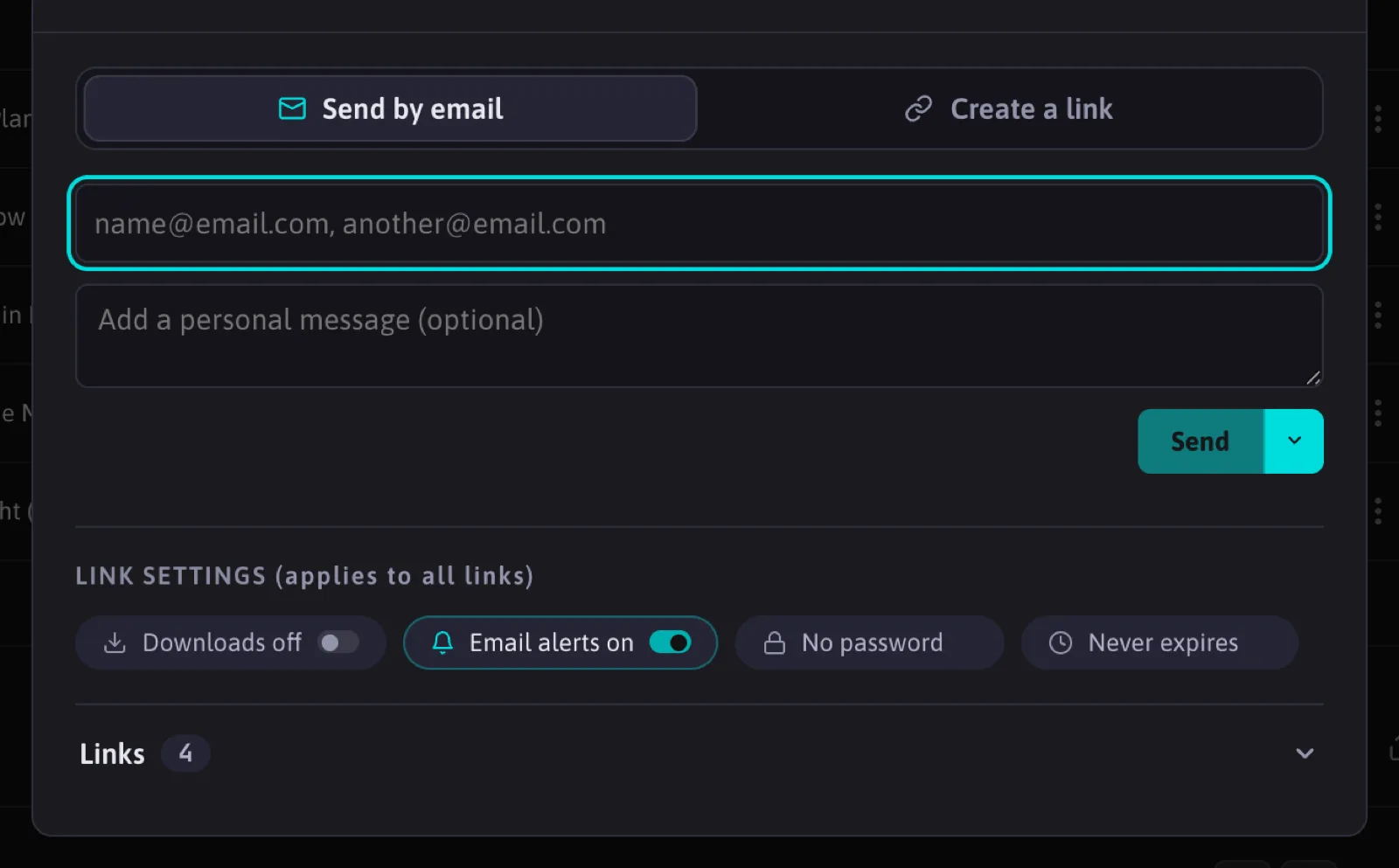
- Email: type one or more addresses, or pick existing contacts. Add an optional personal message and press Send. Each address receives an email with its own link. You can also schedule the send for a date and time, and reschedule or cancel it before it goes out.
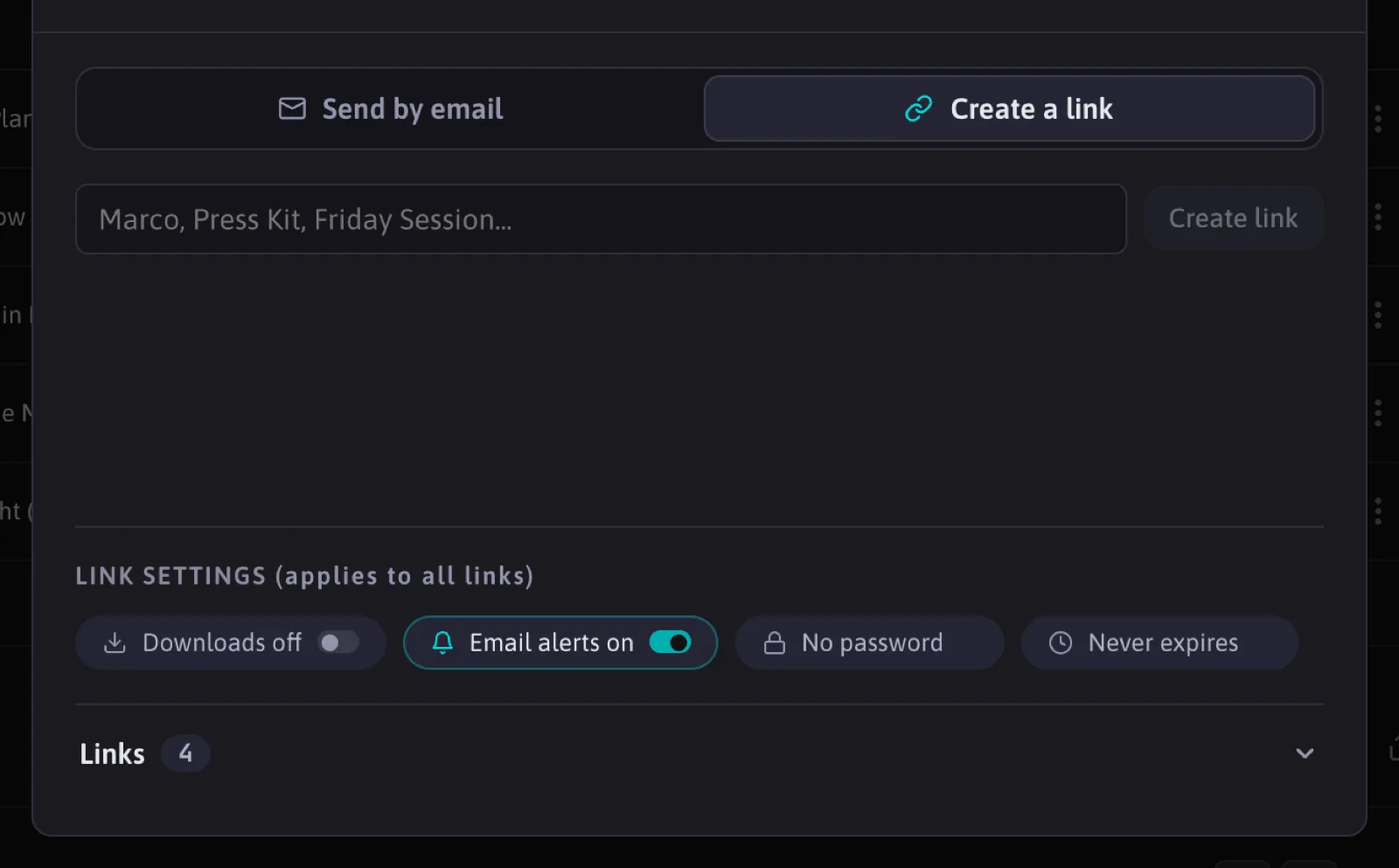
- Link: type a name (for example "Marco" or "Press kit"), create the link and copy it. Send it however you like. The name becomes a contact.
- Website embed (Studio): one public, contact-less link to embed a player on your own site. The widget takes the width of its container; a playlist can be embedded Compact (player only, 166px) or Full (player plus track list, 400px). Its plays are shown separately in Stats, apart from your listener totals.
On a brand new account the window suggests "Create your test link", a link named "You" that you can open in a private browser window to see tracking at work.
Password and expiry
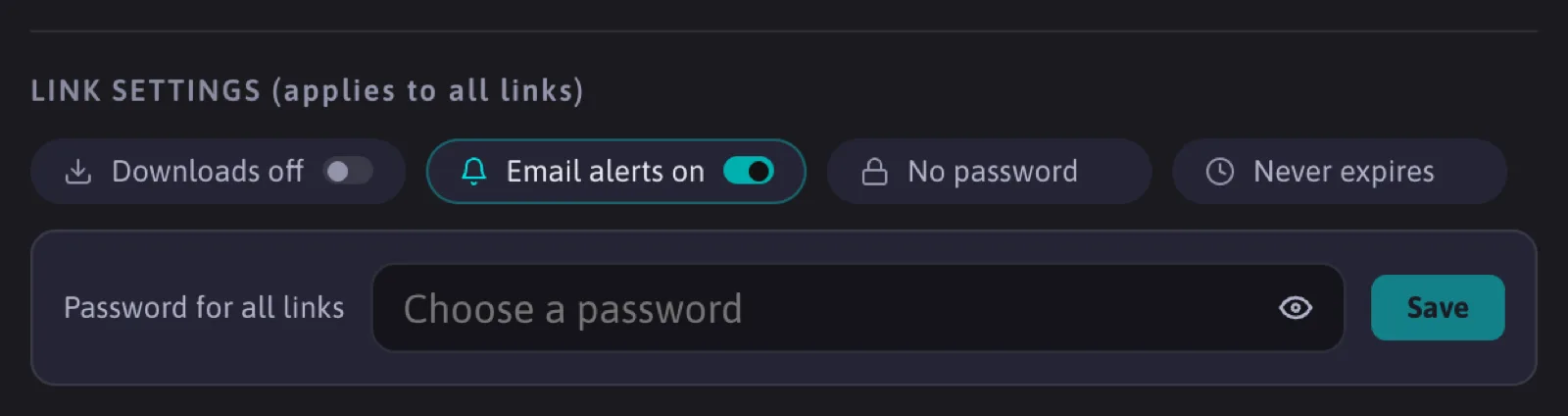
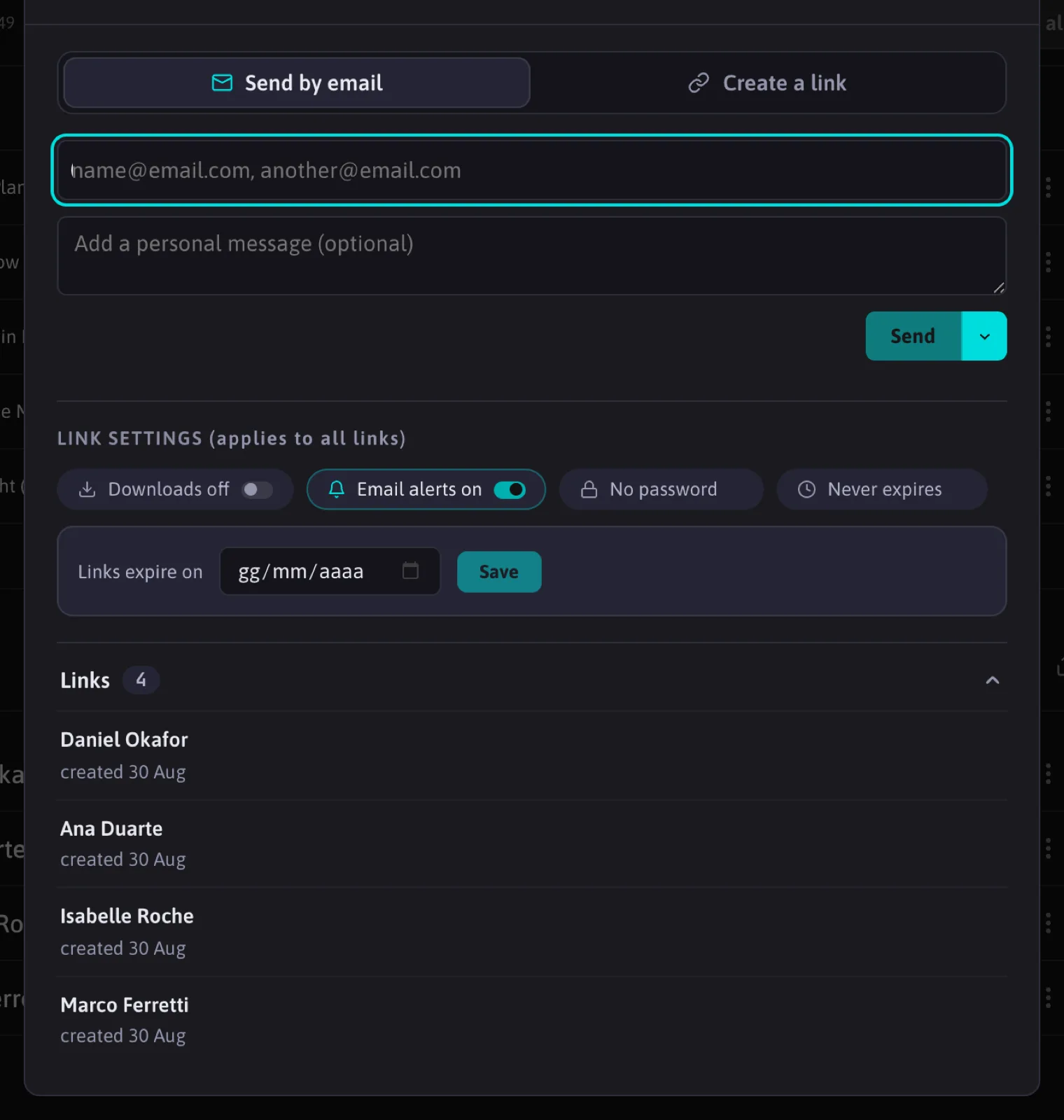
Under the list of links you can set a password for all links of this share, and an expiry date. Both apply to the whole share. A listener types the password once and then plays freely for a day on that device. Remove the password or set "Never" to clear the expiry.
Removing a link
Every link row can be renamed, copied, opened or deleted. When a link is no longer needed, delete it: its address stops working immediately and the listener sees a plain "link not valid" page. Send a new share to give them a fresh link.
What the listener sees
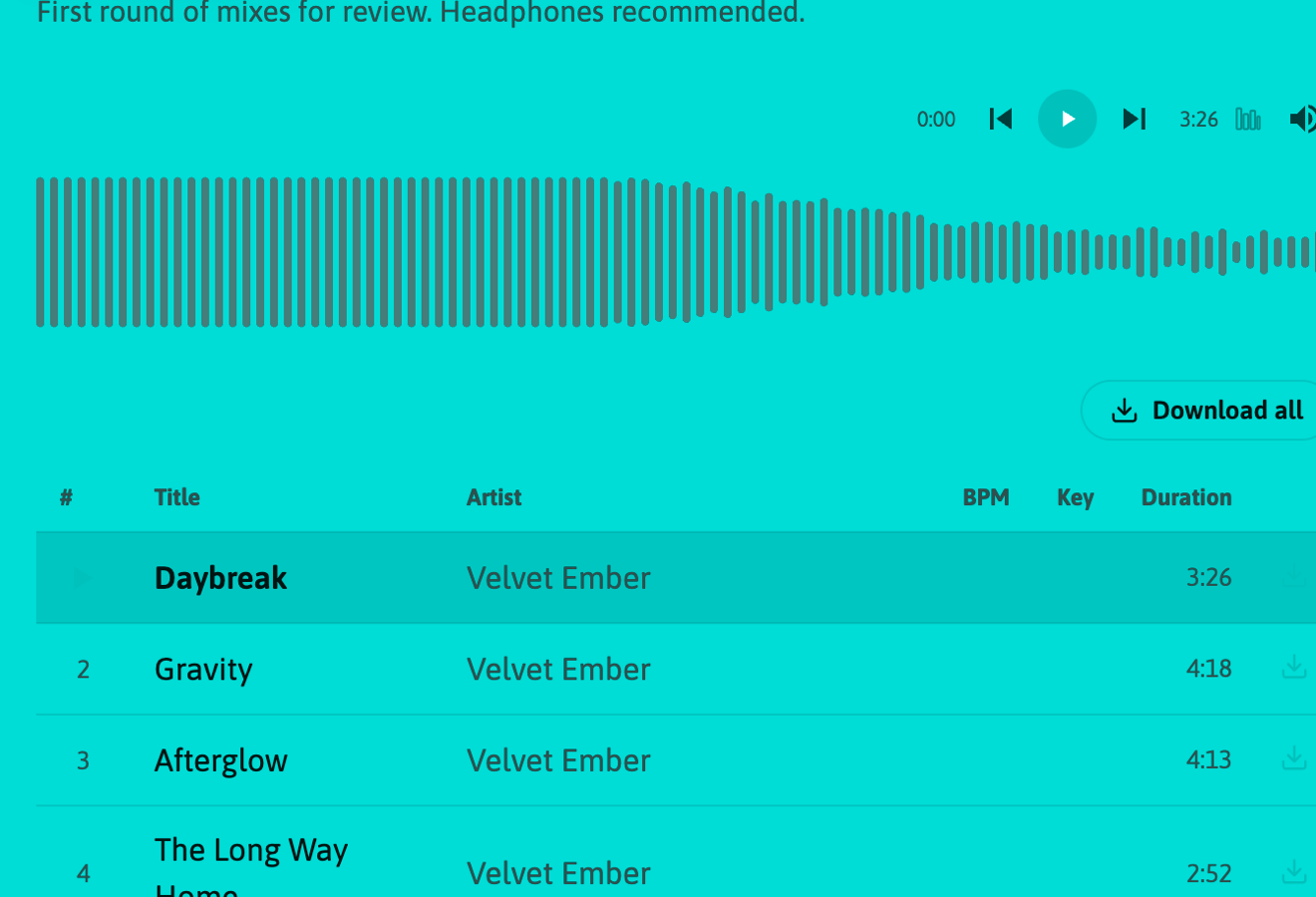
The link opens a player page with the cover, tracklist, your contact info if enabled, and, depending on the share's settings, download buttons, extra files, a "Send files" area, comments and the A/B buttons of a track with versions. No account, no app: it works in any browser on any device.
Keyboard shortcuts
With a keyboard, the listener can drive the player without the mouse:
| Key | Action |
|---|---|
| Space | Play or pause |
| Left / Right arrow | Back or forward 5 seconds |
| 0 or Home | Back to the start of the track |
| Shift+N / Shift+P | Next or previous track |
| M | Mute or unmute |
| L | Match loudness on or off, on a track with versions |
| 1 to 4 | Switch to version A, B, C or D |
| C | Open the comments with the current moment pinned |
The shortcuts rest while the listener types in a field, so a comment can hold any letter. Hovering the play, previous, next, mute and Match loudness controls shows their key.
Limits
Free accounts can create up to 5 links per playlist. Pro and Studio have no limit.
FAQ
Can I send the same playlist to a new person later?
Yes. Open Share again and add the new address. The new link joins the list; existing links are untouched.
What if a listener forwards their link?
Every play through that link is attributed to that contact, so you would see more plays under one name. If you suspect it, delete the link and send a fresh one.
What does a listener see of the other listeners?
Only their own page. Each link is a separate page, and the list of listeners with their plays is visible to you alone.
Can I change the audio quality the listener hears?
The listener always hears the original file, or the gapless version at your plan's quality for multi-track playlists. See Playlists.