
Streaming captures an audio input, and an app such as a DAW plays to an audio output. A virtual audio cable joins the two: a free driver that appears as one more device, so what an app plays into it comes out as an input the browser can pick. Set it up once and it works for any program.
This page is the short procedure. The reasoning behind each step, with the driver documentation, is in the blog article How to stream audio from any app to your browser.
macOS with BlackHole
- Install BlackHole 2ch from existential.audio (or
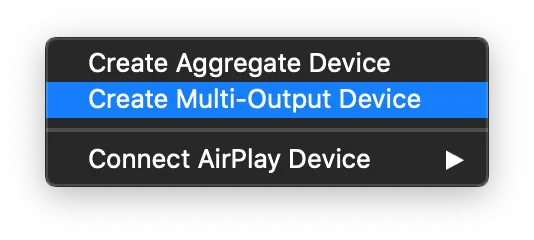
brew install blackhole-2ch), then restart. - Open Audio MIDI Setup (Applications, Utilities). Press the + at the bottom left and choose Create Multi-Output Device.
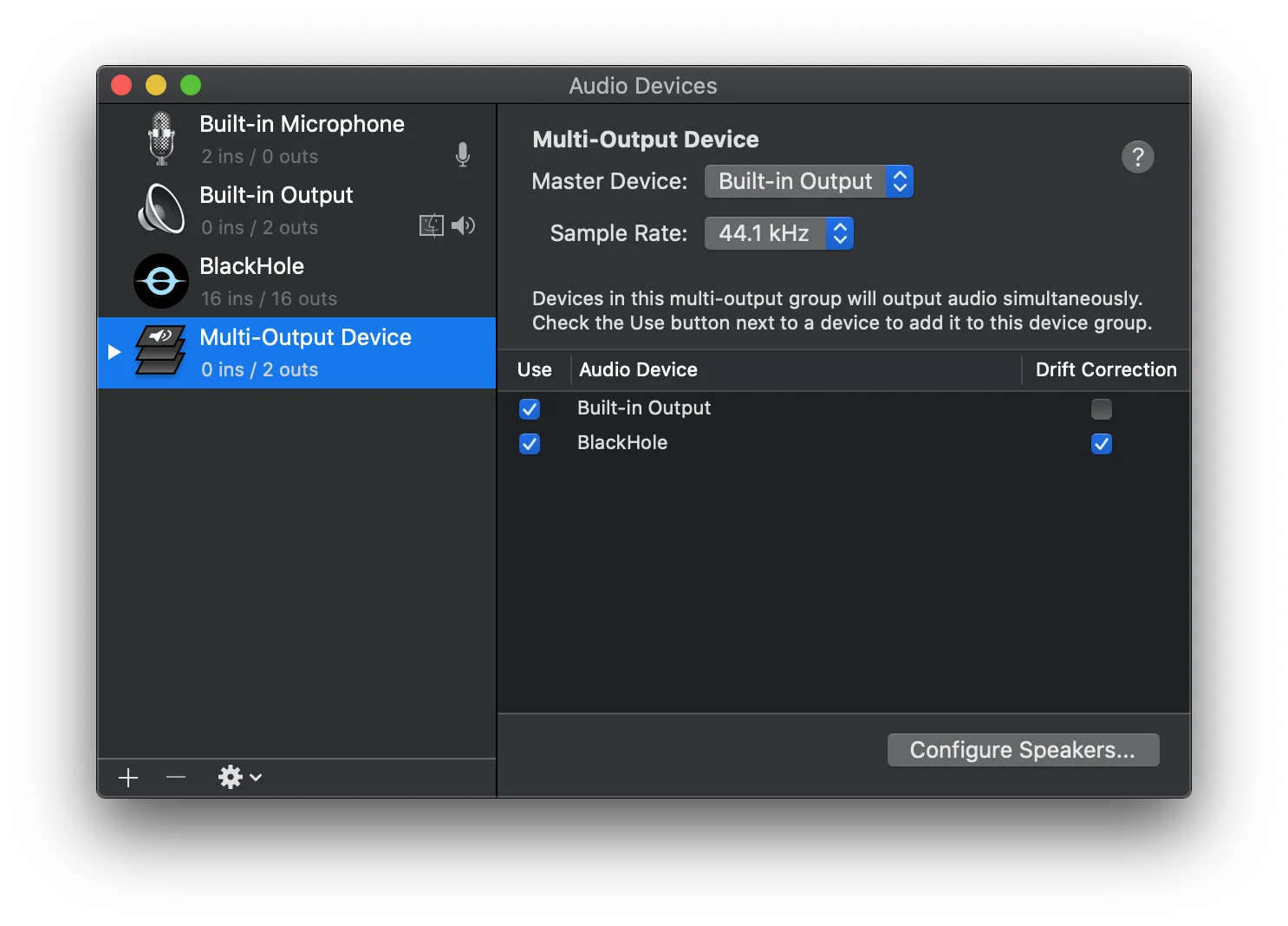
- Tick your speakers or interface first, then BlackHole 2ch. Keep the real output on top: it is the clock source.
- Turn on Drift Correction for every device except the clock source.
- In your DAW, set the output device to the Multi-Output Device. For any other app, make the Multi-Output Device the system output in System Settings, Sound.
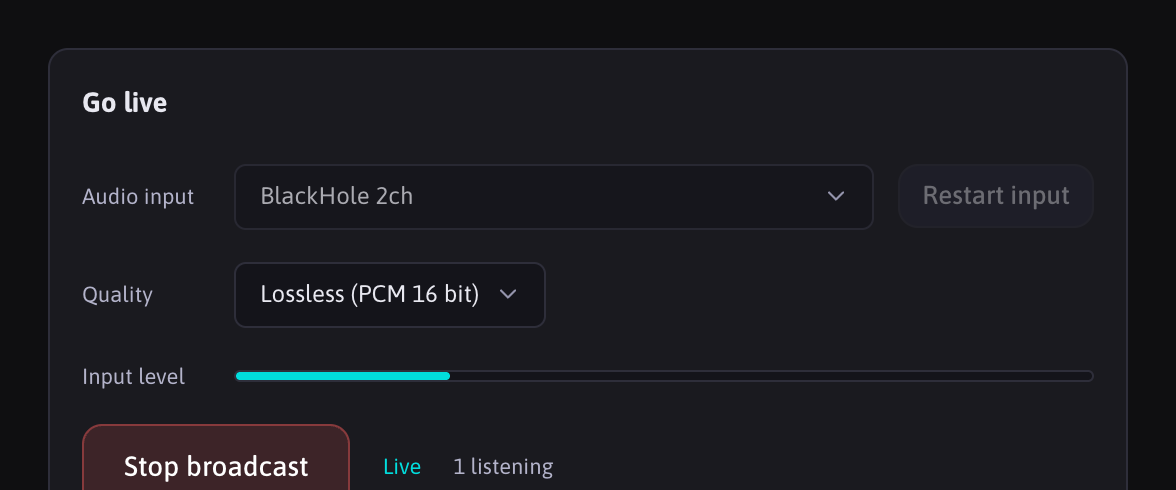
- In trakk'em, open Streaming, pick BlackHole 2ch as the Audio input and press Start input. The level meter moves when the app plays.
If you own Loopback by Rogue Amoeba, it replaces steps 2 to 5: pick the apps, it builds the device and the monitoring for you.
Windows with VB-CABLE
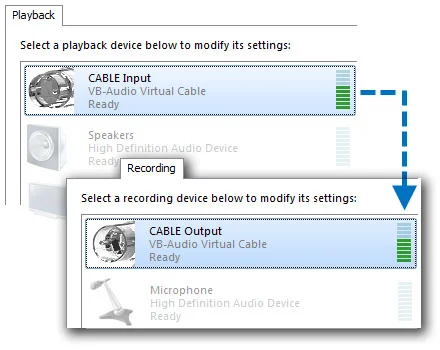
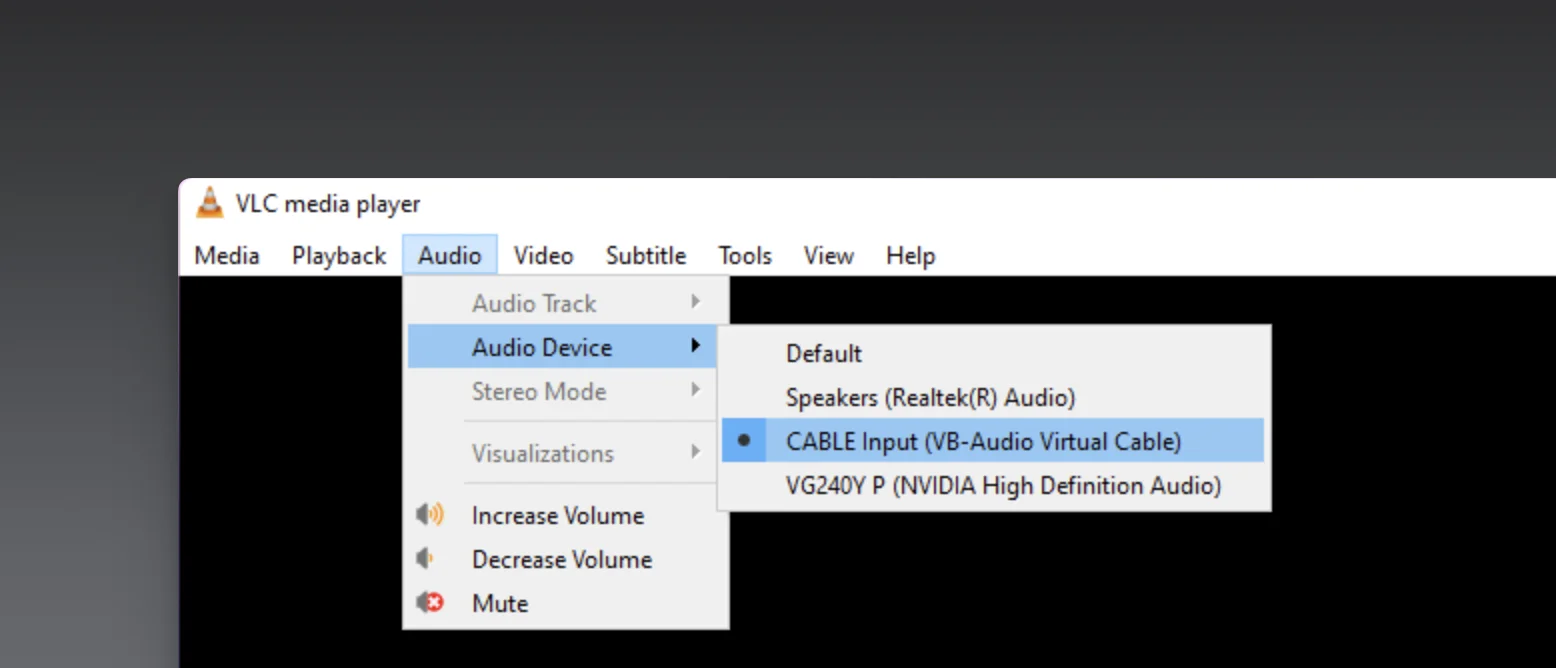
VB-CABLE installs two devices: CABLE Input, an output where you send audio, and CABLE Output, an input the browser captures.
- Install VB-CABLE from vb-audio.com: extract everything, run the setup as administrator, reboot.
- Send the app to the cable. For a regular app, open Settings, System, Sound, Volume mixer and set that app's output to CABLE Input. For a DAW on ASIO, switch the DAW to WASAPI or MME and choose CABLE Input, or use ASIO4ALL, or VB-Audio's Hi-Fi Cable with ASIO Bridge.
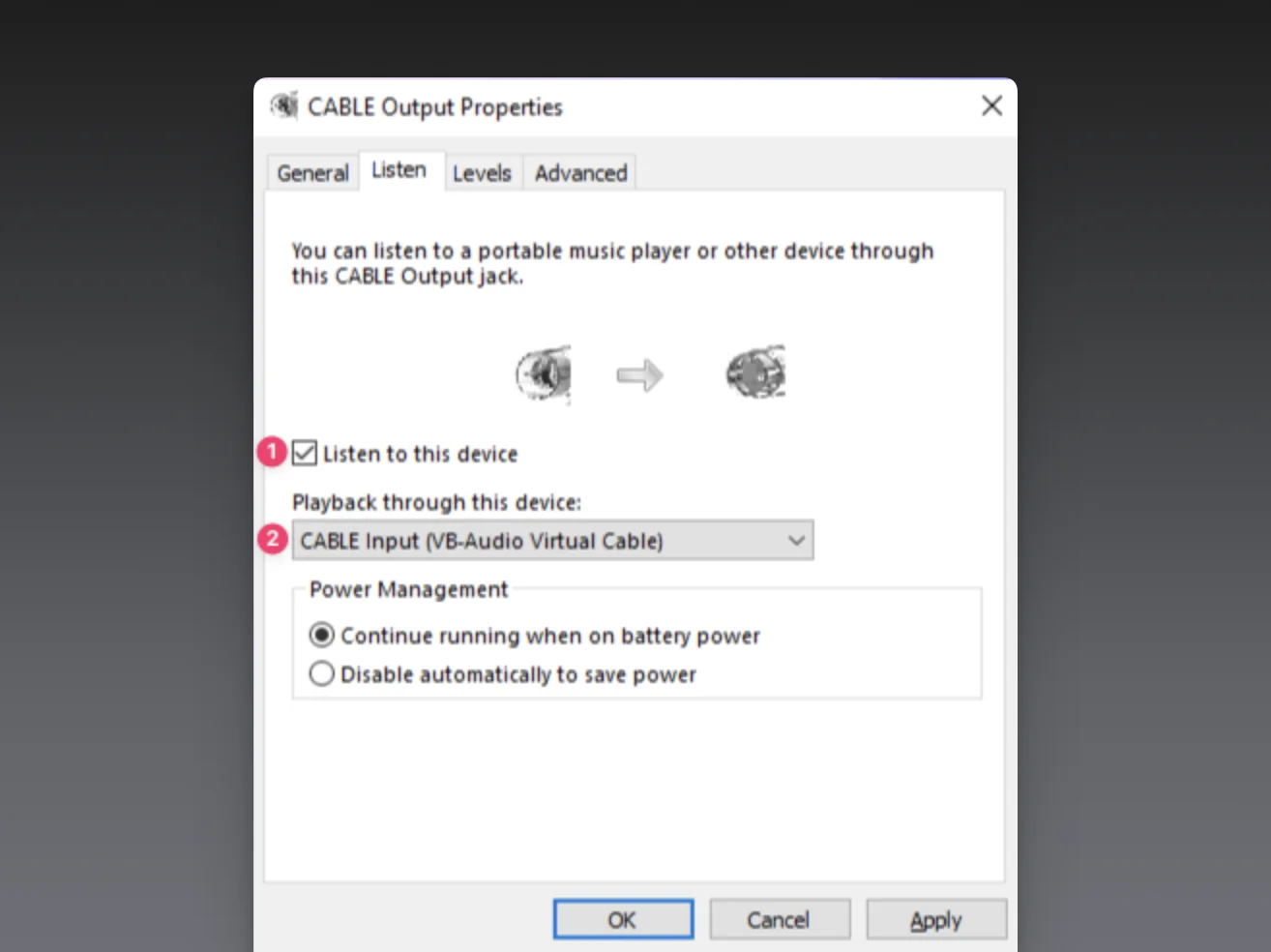
- Keep hearing it: open the classic Sound panel (
mmsys.cpl), Recording tab, CABLE Output, Properties, Listen tab, tick Listen to this device and choose your speakers.
- Match the sample rate in three places: the DAW, the Default Format of CABLE Input and CABLE Output (Advanced tab), and the cable's internal rate in the VB-CABLE Control Panel run as administrator.
- In trakk'em, open Streaming, pick CABLE Output as the Audio input and press Start input.
Sample rates
Keep the DAW, the cable and your interface at the same rate, 44.1 or 48 kHz. trakk'em streams at the input device's own rate, without processing: echo cancellation, noise suppression and automatic gain control are refused on purpose, so what leaves your master bus is what listeners hear.
Before you go live
| Symptom | Cause | Fix |
|---|---|---|
| The level meter stays flat | The app still plays to the speakers | Set the app's output to the cable (or the Multi-Output Device) |
| You hear nothing yourself | The cable is the only output | Multi-Output Device on macOS, Listen to this device on Windows |
| Crackles or pitch drift | Sample rates differ along the path | Same rate on DAW, cable and interface; Drift Correction on macOS |
| A notification lands in the stream | Another app plays into the cable | Route only the app you want, or silence notifications while live |
| The cable is missing from the Audio input menu | The driver is not loaded | Restart after installing; on Windows, run the setup as administrator |
When the meter moves and you can hear the mix, press Go live and send your streaming link. See Streaming for the link, the quality tiers and the listener page.
FAQ
Which app can I stream?
Any app that plays audio: a DAW, a music player, a browser tab, a video call. The cable sits below the apps, so it captures whatever you route into it.
Do I need the cable every time?
The setup is done once. From then on it is: play into the cable, open Streaming, go live.
Which quality tier should I broadcast?
Lossless when quality is the point and the listener's connection is good; High for most sessions; Low for listeners on mobile networks.