
You want to react to music on Twitch. Listen to a new album with chat, comment track by track, maybe upload the VOD to YouTube afterwards. And you already know how that story usually ends: a muted VOD, a DMCA notice, a Content ID claim on the YouTube upload, and after three of those, no channel.
There is a way to run a music reaction stream, a listening party or a review show where the music never enters your Twitch stream or your VOD at all, and your viewers still hear it in sync with you. It takes one free driver and a second link. This guide sets it up.
The problem, in one paragraph
Twitch's music guidelines allow music you own or are licensed to broadcast; a Spotify, Apple Music or YouTube subscription is a personal listening licence, not a permission to rebroadcast to an audience. Twitch enforces this three ways at once: automatic audio detection that mutes VODs and deletes clips, DMCA notices from rights holders that count as strikes, and a separate Music Reporting Process. On YouTube, Content ID scans every upload automatically and lets the rights holder block it, monetise it or track it; a formal removal request becomes a copyright strike, and three strikes in 90 days terminate the account. A "reaction" or "review" framing does not switch any of that off.
So the only clean approach is structural: do not put the music in the stream.
The setup: two channels, one show
Split the audio into two separate paths:
- Twitch carries you. Your microphone, your webcam, your overlay, your chat. This is what gets recorded as the VOD and what you upload to YouTube. No music in it, nothing to detect.
- A parallel audio link carries the music. The album, the Spotify queue, the YouTube video you are listening to plays on a trakk'em live stream: a web page your viewers open in a second tab or on their phone. It is not part of Twitch, it is not recorded, and it is not in the VOD.
Viewers watch you on Twitch and listen to the music on the trakk'em link. You hear both, they hear both, the platforms see only your voice.
Think of it as a listen-along or a second audio channel for your stream, the way DJs and reaction streamers already tell chat "play the song on your side while I talk": except here everyone hears the same feed at the same time, in lossless, from a link you gave once.
Step 1: route the music into a virtual audio cable
The music app has to play into a virtual audio cable instead of your speakers, so that a browser can capture it as an input. This is the same setup used for streaming a DAW; the full walkthrough is in how to stream audio from any app to your browser. The short version:
- macOS: install BlackHole (free). In Audio MIDI Setup create a Multi-Output Device with your headphones or interface first and BlackHole second, so you keep hearing the music. Set the music app, or the system output, to that Multi-Output Device.
- Windows: install VB-CABLE (free). In Settings > System > Sound > Volume mixer, set the music app's output to CABLE Input. To keep hearing it yourself, open the classic Sound panel, Recording tab, CABLE Output > Properties > Listen, tick Listen to this device and pick your headphones.
Use headphones. If the music plays through speakers, your microphone picks it up and it ends up in the Twitch stream anyway, which is exactly what we are avoiding.
Step 2: broadcast the cable on trakk'em
In trakk'em, open Streaming, choose BlackHole 2ch (Mac) or CABLE Output (Windows) as the audio input, press Start input and check that the level meter moves when the music plays. Pick a transmission quality (lossless if your upload allows it, otherwise High), then Go live.
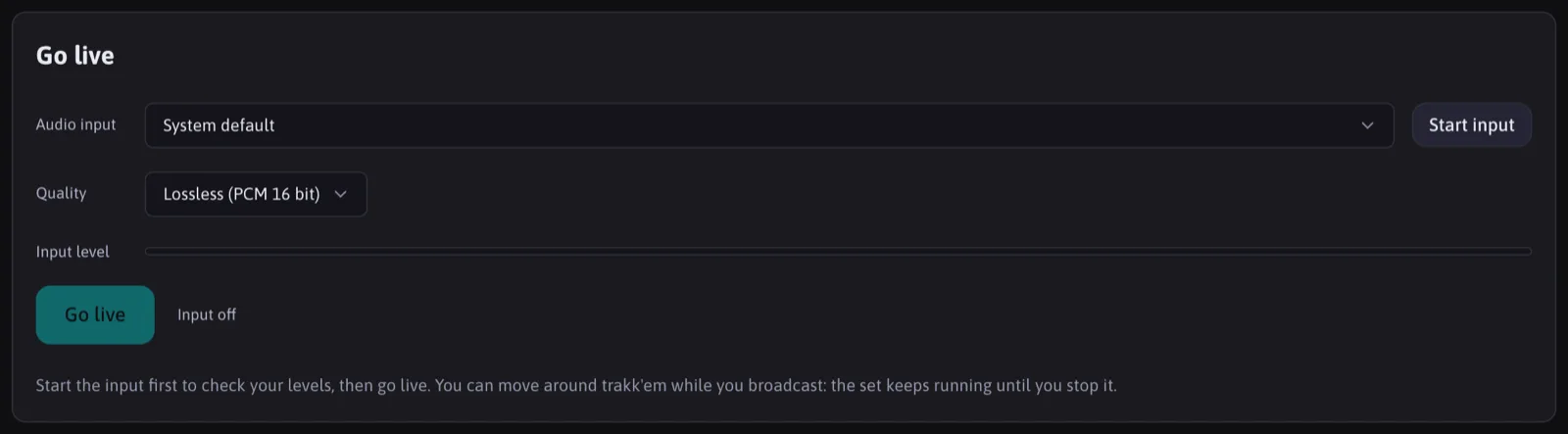
Your streaming link is permanent. Put it in your Twitch panels, in a chat command (!music, !listen, !audio), in the stream title, in your bio. Viewers who open it before you go live see a waiting room and get connected automatically when you start; anyone who arrives mid-stream joins the set in progress. When you stop, the page goes back to waiting for next time, same link.
On the listener page, viewers get a volume control, a quality picker (lossless, high, low for mobile data) and a buffer control for a stable feed on a weak connection. Nothing to install, no account, works on a phone.
Step 3: keep the music out of OBS
This is the part people get wrong. The virtual cable is now an audio device on your computer, and OBS will happily capture it if you let it.
Windows (OBS 28 or later, Windows 10 2004+ or 11): use Application Audio Capture sources instead of the global Desktop Audio. Add one source per app you do want in the stream (a game, a browser tab with chat alerts) and, as the OBS guide itself recommends, go to Settings > Audio and set the global Desktop Audio device to Disabled. The music app simply has no source in OBS, so it is not captured. Do not add CABLE Output as a source.
macOS (OBS 30 or later, macOS 13+): use the macOS Audio Capture source in application mode, capturing only the apps you want, and leave the music app and BlackHole out. On older macOS versions OBS needs a virtual device to capture desktop audio at all, which is another reason not to point it at the one carrying the music.
Either platform: in Settings > Audio, make sure none of the Global Audio Devices is set to the virtual cable, and in the Audio Mixer check that only your mic (and whatever game or alert sources you added) shows a moving meter while the music plays. A meter that dances to the music is a source that will get you muted.
Step 4: test it before you go on air
- Start a private test stream, or a local recording in OBS.
- Play a track through the cable, talk over it.
- Open your trakk'em link on your phone: you should hear the music.
- Watch the OBS Audio Mixer: only the mic meter should move. Play back the recording: voice only.
If the recording contains music, either your mic is picking up the speakers (use headphones) or a global Desktop Audio device is still on.
What this does and does not do
It does: keep copyrighted music out of your Twitch broadcast, your VOD, your clips and your YouTube upload, so there is nothing for audio detection or Content ID to match. It also gives your viewers a better listening experience than a compressed Twitch stream: the trakk'em feed is lossless.
It does not: give you a licence. Playing music to an audience on any channel, including a private trakk'em link, is still a public performance in most jurisdictions, and it is your responsibility to have the right to do it. This setup moves the music out of the recorded, monetised stream; it is not a way around the law, and this article is not legal advice. Streaming your own music, music you have licensed, or music the artist has cleared for your show is where this shines.
Why a dedicated link and not "play it on your side"
Telling chat to start the same track on Spotify never lines up: everyone presses play at a different second, on a different edition, with ads. A single live feed means every viewer hears the same thing you hear, at the same point, for the whole show, and you can see how many are listening and from where. For a listening party, an album premiere, a beat review show or a producer breakdown, that is the difference between a stream and a shared room.
Live streaming is included in trakk'em Pro and runs from any Chrome or Edge browser: see how it works.
Sources
- Twitch Music Guidelines: what music is allowed on Twitch and how enforcement works.
- Twitch music rules explained (Velveteen): the three enforcement lanes (audio detection, DMCA, Music Reporting Process) and the note that a consumer subscription is not a broadcast licence.
- How Content ID works (YouTube Help): automatic scanning, block / monetise / track.
- Copyright strike basics (YouTube Help): strikes vs claims, three strikes in 90 days, live stream restrictions.
- OBS Application Audio Capture guide: per-app capture on Windows and disabling the global Desktop Audio.
- OBS macOS desktop audio capture guide: the macOS Audio Capture source and what older macOS versions need.
- OBS Audio Mixer guide: reading the meters and muting sources.